Pages

Showing posts with label sharepoint. Show all posts

Thursday, April 21, 2011

PowerPivot for SharePoint - Part IV

Finally reaching the last post on PowerPivot for SharePoint, let's go ahead and have some fun with the PowerPivot site.

1. Let’s activate the features now, go to your SharePoint site, and turn on the feature in “Site Collection Features”!


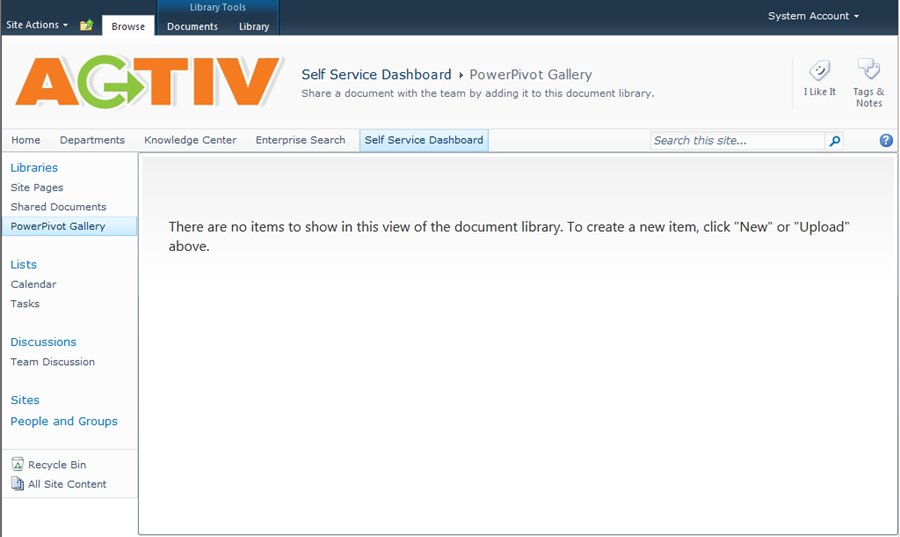
2. Go to Create Site now, you will be seeing a new PowerPivot Site option!

3. Hurray, let's rock and roll with PowerPivot Gallery!

For more related posting, please refers,

Wednesday, April 20, 2011

PowerPivot for SharePoint - Part III

Yesterday, Part II, we really focus on how to setup the pre-requisites and ground work for PowerPivot for SharePoint.

Today, it about the configuration!

1. Before we start the PowerPivot Service Application's configuration, some simple configuration needed to be done on Excel Service Application first,

2. We need to set the trusted location (this is also applicable for Excel Services publishing)
2.1 Important #1 - In External Data, set Allow External data to “Trusted data connection libraries and embedded”. This setting is required for PowerPivot data access in a workbook.

2.2 Important #2 - Clear the “Warn on Data Refresh” checkbox to allow preview images of individual worksheets in PowerPivot Gallery. If you choose to keep the warning and workbook settings specify refresh on open, you might get a single preview image of the warning instead of the pages in your workbook. (You don’t want the PowerPivot Gallery, turns out showing the ugly warning page on Worksheet preview).


2.3 Important #3 – Increase the Workbook Size!

3. Next thing to do is to configure the Unattended Data Access Account, go to "Secure Store Service" application.

4. Create a New Secure Store Target Application (Just follow the screenshot, and remember the Application Name you specify)!


5. Set who can use this Secure Store Target Application Account!

6. Finally, set the credential (which account to use).


7. Finally, tell PowerPivot Service Application (The name you have given in Step 4), which Secure Store Application to use for Unattended Data Refresh Account.

8. Now you get the PowerPivot dashboard! Go to the “Configure service application settings”, and set the Unattended Data Refresh Account!


Guys! We are DONE with the configuration!

I promise the next post will be quick, how to activate the features, and create a PowerPivot site (with the sexy silverlight PowerPivot viewer) and we will start to rock-and-roll!

For more information about PowerPivot for SharePoint,

Tuesday, April 19, 2011

PowerPivot for SharePoint - Part II

I decided to resume blogging again, with the same old story that i left out six months back, on the installation of PowerPivot for SharePoint.

This time around, i am doing it on a serious end-to-end series of the installation and configuration, on an existing SharePoint Farm.

It is going to be lengthy, so i will be separating it to few posts.

Let's get started.

1. Installing PowerPivot for SQL , on existing Farm!

2. This is taking a while to complete. (My case, it took around 7 – 10 minutes to complete).

3. It is DONE! (With Success!)

4. Next thing after installation, make sure you deploy the “powerpivotwebapp.wsp” to all the sites that you want to enable PowerPivot integration!

5. You should have two (2) wsp installed, you only deploy “powerpointwebapp.wsp” to all web applications you want to enable PowerPivot!

6. You have to make sure these important services (Claims to Windows Token, Excel Calculation Services, Secure Store Service) are running as well (These services MUST be running)!

7. So, you have done with the preparation of PowerPivot for SharePoint, next is to “Create the Service Applications”!

8. I usually just accept the default settings :p

We are now done with the preparation, these are just the preliminary ground work required for the PowerPivot to work in SharePoint.

The next part we will talk about more detail configuration required on Excel Services Application, Secure Store Service Application, and PowerPivot Service Application required to empower your PowerPivot integration feature with SharePoint.

Sunday, August 15, 2010

SharePoint 2010 Master Page

When it come to styling and changing the UI for SharePoint, you can't run away from Master Page, now, in 2010, you will still be changing and working with Master Page, from your SharePoint Designer 2010.

Few things to be aware of when working with SharePoint 2010 master page,

1. When you have a team site, please turn on your Publishing feature so you can then pick and choose the master page to apply to your site.

2. Simplest to start off with is really to start off with the Starter Master Page by Randy Drisgill, this master page really give you a quick and clean starts by removing all unnecessary html elements, which is quite irritating if you were to reposition the SharePoint controls.

3. In the Starter Master Page, change the CSS registration control to map to your CSS file (Of course, store it in your Style Library).

4. Start your IE8, use the Developer Tool to start picking up elements and change the CSS classes to your preference! You may refer the following URL for the list of CSS classes used in SharePoint,

Have Fun with your Master Page, i will post one of my "test drive" in the later post!

Thursday, August 12, 2010

Linq with Sharepoint

Doing a few round of testing on Linq and Sharepoint with my tech lead, and here is the outcome of our testing, the joining between two lists with simple Linq syntax was extremely straight forward, but, the result was just awesome!

The following is the code snippet,


If you are developing some custom applications which stored data in multiple Sharepoint lists, this piece of code is gonna save your days!

I will be posting the sample lists and results achievable in a later post.

Microsoft Innovation Day - 6 August 2010

For those who attended the Microsoft Innovation Day, Malaysia, @6 August 2010, if you need the slide that i have presented, feel free to download from my sky drive, or view online at the following link,


Happy Reporting!

Tuesday, August 10, 2010

PowerPivot for SharePoint Installation

My first PowerPivot for SharePoint installation was done last year December, that was really far back where SQL Server 2008 R2 was still in CTP.

Last month, i have to setup the PowerPivot for my SharePoint 2010 RTM instance, in preparing for some demos and events.

My first attempt was really a smooth start, New Installation on Existing Farm brought me to the following screen, where i am happy to see that!

Now, my excitement does not last long when i start hitting some "Generic Error" that really cracking my head (First time, i did not capture the error log).

Went ahead and check out with my colleagues, we are suspecting the Claim to Windows Token Services was disabled, without second thought, we went ahead to enable the service, and restart the installation (No effect on my existing instance, thanks to Hyper-V snapshot).

Guess what, the installation is still failed! This time around, we are getting a different error message,

Could not load file or assembly 'Microsoft.AnalysisServices.SharePoint.Integration'.....or one of its dependencies. The system cannot find the file specified.

Arghh... what's wrong with my SharePoint, am i doing anything wrong? Man, what does it has to do with Analysis Services?

I am giving this up, and now is time to Bing around for answer, well, there are a few article out there that mentioned about the c2wts config, but what helped me was the article from PowerPivotGeek. (You guys ROCK!)

The explanation as following: -

In SQL Server 2008 R2, the msmdsrv.exe process (which is the SSAS engine) includes a reference to the PowerPivot SharePoint integration dll (as do other components). Since the normal SSAS installation does not include the SharePoint integration dll, the registration marks the .NET assembly cache as failed. Later on, when you install PowerPivot, we copy the SharePoint integration dll to the right place, but the .NET assembly cache has already been marked failed from the previous SSAS installation and .NET does not attempt to load it (and you get the error message above).

So i should be setting up at the following sequence?

1. Microsoft SQL Server 2008 R2 (Only Database Engine)
2. Microsoft SharePoint 2010
3. PowerPivot for SharePoint
4. Analysis Services and etc.

Is that correct? Anyone?